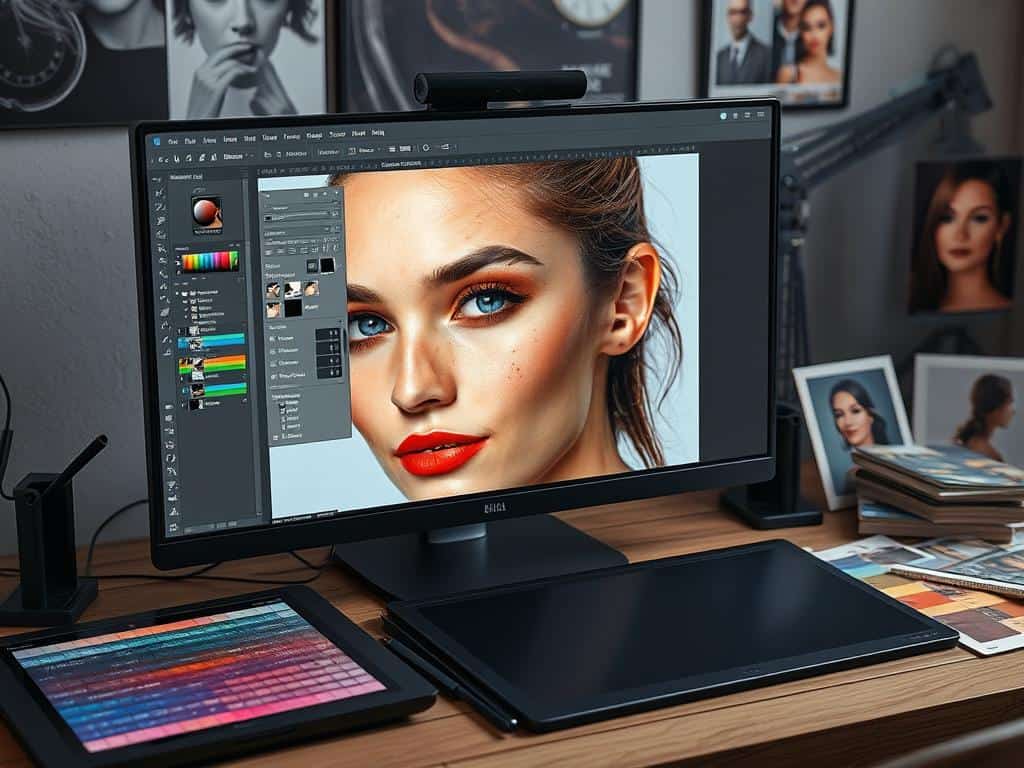

Did you know 148 photographers have shared tips on mastering skin retouching with Frequency Separation? This advanced Photoshop technique lets us edit portraits better. It separates details from color and tone, making editing more efficient and natural-looking.
Using Frequency Separation, I can fix skin texture and remove wrinkles or blemishes easily. This keeps my portraits looking real. In this article, I’ll explain why Frequency Separation is key in portrait editing. I’ll also give a detailed guide on how to use it in Photoshop, for both 8-bit and 16-bit images. Let’s explore this powerful tool together!
Key Takeaways
- Frequency Separation improves retouching efficiency and quality.
- Separate editing of high and low-frequency layers enhances realism.
- Ideal Gaussian Blur radius for color and tone is around 2.0 pixels.
- Step-by-step tutorial available for both 8-bit and 16-bit files.
- Unique Photoshop Action can significantly save time in retouching.
Understanding Frequency Separation and Its Importance in Portrait Retouching
Frequency Separation is key in skin retouching. It balances texture and tone in portraits. It divides an image into two layers: high frequency and low frequency. Each layer focuses on different aspects of the image.
What is Frequency Separation?
Frequency Separation breaks an image into two parts. The high-frequency layer catches details like texture and blemishes. The low-frequency layer handles color and tone.
This method lets me make precise adjustments. It enhances the retouching quality without losing the natural look. It’s all about keeping the essence of my subjects.
The Benefits of Using Frequency Separation in Retouching
Frequency Separation brings many benefits to skin retouching. It gives a polished look without losing unique features. This is key to avoiding over-retouching.
It makes realistic skin texture possible. You can smooth out imperfections on the low-frequency layer. Then, refine details on the high-frequency layer.
This technique is non-destructive. All changes can be reversed. It offers peace of mind during editing. With it, creating flawless portraits is both manageable and enjoyable.
Step-by-Step Guide to Implementing Frequency Separation in Photoshop
To use Frequency Separation in Photoshop, you need a clear plan. A well-organized workflow is key for top-notch retouching. I start with a Photoshop workspace setup tailored for efficiency. I reset my workspace to Essentials and name it “Frequency Separation.”
This setup gives me quick access to Layers, History, and Actions. It makes my retouching tasks smoother.
Setting Up Your Workspace
I begin by converting the background layer to a Smart Object. This keeps my edits non-destructive, preserving the image quality. It lets me control my workflow better, focusing on skin texture refinement.
Creating Frequency Separation Layers
Next, I create Frequency Separation Layers for skin texture editing. I duplicate the original layer twice, naming them “High Frequency” and “Low Frequency.” I apply a Gaussian Blur to the Low Frequency layer, setting the radius between 2-10 pixels.
For the High Frequency layer, I use a High Pass filter with the same radius. I change its blending mode to Linear Light. This setup lets me edit skin tone and texture separately, essential for natural-looking skin.
Retouching Techniques for Flawless Results
With my layers ready, I start retouching. On the Low Frequency layer, I use the Healing Brush tool for a natural skin tone. On the High Frequency layer, I refine skin texture with the Clone Stamp tool, adjusting its opacity for a seamless blend.
I also use dodging and burning techniques to enhance highlights and shadows. A 50% gray layer set to Overlay blending mode helps keep enhancements subtle. I aim for an opacity of 5-10% for natural results.
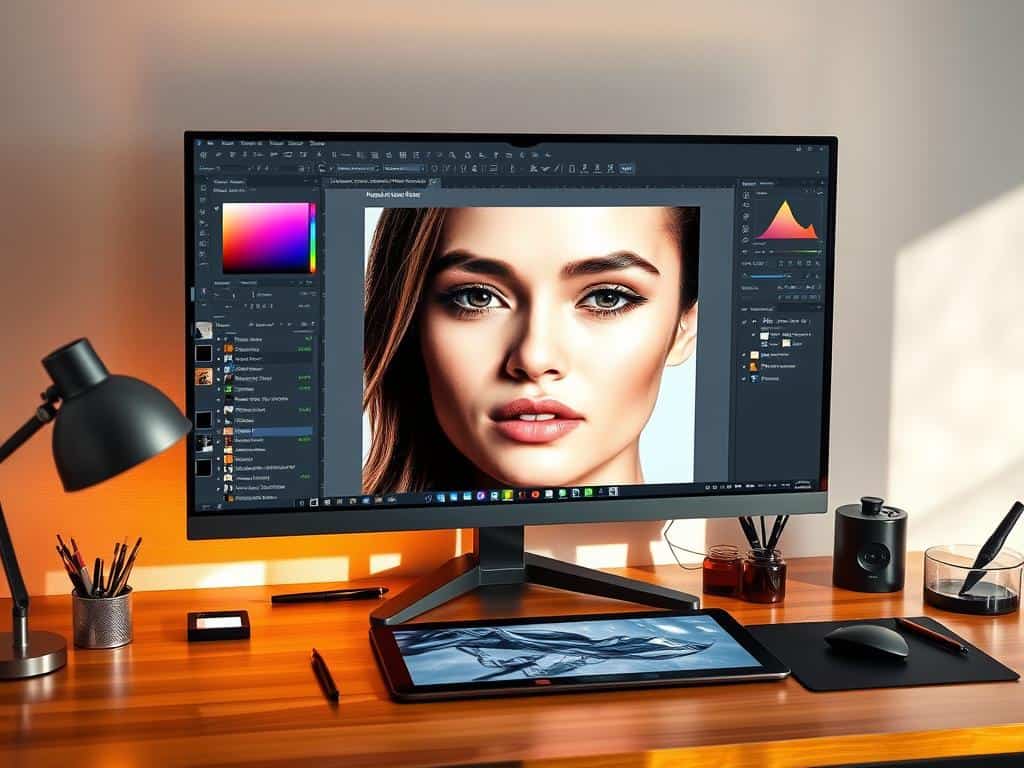
This method, along with tools like the Mixer Brush and Curves adjustment layers, helps me refine colors and textures efficiently. Regularly checking against the original image ensures balanced results without over-retouching. The Frequency Separation technique boosts the quality of my retouching work.
Conclusion
Mastering Frequency Separation has changed the game for me in professional portrait retouching. It lets me separate images into high and low frequency layers. This way, I can smooth out skin tones while keeping natural textures.
This method makes my work faster and more stunning. It’s a big help in my workflow and boosts my skills. I can now edit images quicker and get amazing results.
Using Frequency Separation in my work has been a big plus. It helps fix blemishes and enhance details in product photos. It’s also great for correcting skin issues.
Knowing when to use this technique is key. It helps me work more efficiently and improve my work quality. This knowledge has changed how I tackle tough retouching jobs. I make sure to deliver high-quality images that please my clients.
Frequency Separation is more than just a tool for me. It’s a vital part of my retouching toolkit. As I get better at using it, I meet my clients’ expectations. It also keeps me at the top in the competitive world of photography.
