
Did you know that changing gradient colors and blending modes can make images look much more striking? Gradient maps are a key tool in Photoshop, letting you turn an image’s colors into bold gradients. By setting dark areas to one color and light areas to another, you can make your photos pop with color.
In this article, I’ll show you how to use gradient maps. We’ll cover the basics and some advanced techniques. With over 100 preset gradients in Photoshop, you can try out endless creative ideas. Whether you want small tweaks or big changes, learning about gradient maps can open up new possibilities in your work.
Key Takeaways
- Gradient maps replace original colors with chosen gradients for dramatic color shifts.
- Photoshop offers over 100 preset gradients as starting points for custom edits.
- Blending modes can enhance or reduce color impact, influencing the final look significantly.
- High-contrast and muted gradients create varied moods, enriching visual storytelling.
- Stacking gradient layers can increase creative output efficiency by up to 50%.
Understanding Gradient Maps in Photoshop
Gradient maps are powerful tools in Photoshop. They let me change an image’s colors based on light and dark areas. This way, I can make big color transformations without harming the original image. Using the Gradient Editor, I can make everything from bold black-and-white images to bright colors.
What Are Gradient Maps?
A gradient map changes an image’s light and dark areas to a chosen color. It usually turns images into black and white, with shadows as black and highlights as white. But, it can also make images rich in color or enhance their natural tones. This tool is a big help in my Photoshop editing work.
Types of Gradients Available in Photoshop
Photoshop has many gradient types, like linear, radial, and reflected. Each type of gradient has its own use. For example, linear gradients are great for smooth backgrounds. Radial gradients create striking spotlight effects. Plus, I can make custom gradients in the Gradient Editor to match my vision. These options let me create stunning designs.
The Power of Blending Modes
Blending modes control how gradients mix with the image. Using modes like Multiply, Screen, or Overlay can change an image’s look a lot. For example, Multiply mode makes images darker and richer, while Screen mode makes them lighter and more ethereal. Learning blending modes lets me create many different looks, making my projects more visually appealing.
Mastering Gradient Map Adjustments
To take my projects to the next level, mastering gradient map adjustments is key. Learning to create custom gradients opens up a world of possibilities. It lets me tailor color schemes for each project.
Using the Gradient Editor, I can fine-tune color stops and positions. This defines how colors work together in my gradients. By exploring gradient techniques with bold or muted tones, I can tell unique stories with my visuals. This boosts my creativity and workflow.
Creating Custom Gradients
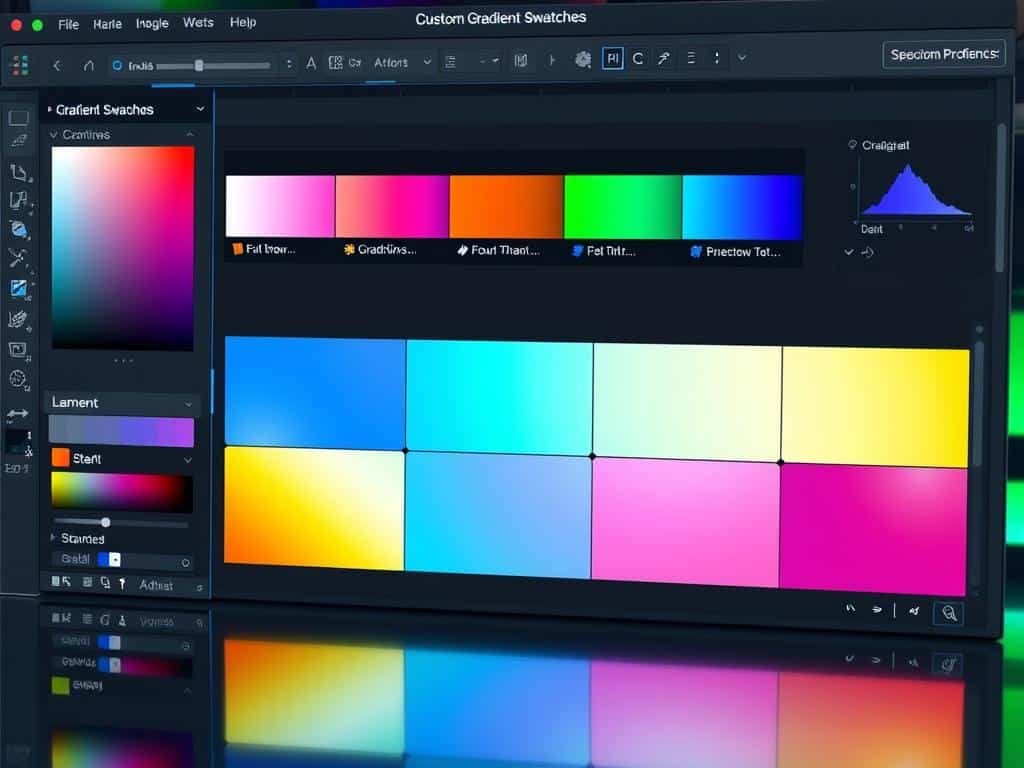
Creating custom gradients is a big part of making my designs unique. The Gradient Editor makes it easy to add color stops and create complex gradients. With a rich palette, my designs get depth and character.
This allows for dramatic color shifts, making my visuals more impactful. Custom gradients not only make my designs look better but also make me happier with my work. They’re a valuable tool in my design arsenal.
Techniques for Better Visual Effects
Using different gradient map techniques is vital for stunning visuals. For example, I use deep blue to black gradients to create a nighttime feel. This changes the mood of an image dramatically.
Layering gradients adds depth, while adjusting opacity creates smooth transitions. Techniques like ‘Soft Light’ allow for subtle corrections that bring my graphics to life. Also, using gradient maps in branding projects improves color consistency and design coherence.
Conclusion
Using gradient map adjustments in Photoshop opens up a world of creative possibilities. It lets me change more than just a few colors, making my images rich and impactful. I’ve learned to make custom gradients and use blending modes, which makes my work better and keeps colors consistent.
Understanding light and shadow through gradient maps is key. It helps me grasp tonal ranges and depth, making my artwork stand out. With each project, I get better at using gradient maps, which encourages me to try new things in Photoshop.
Practicing these techniques helps me improve and create art that shows my vision. The depth and richness of gradient maps grab viewers’ attention. As I get better with these tools, I’m excited to see how they change my photos and the stories they tell.
