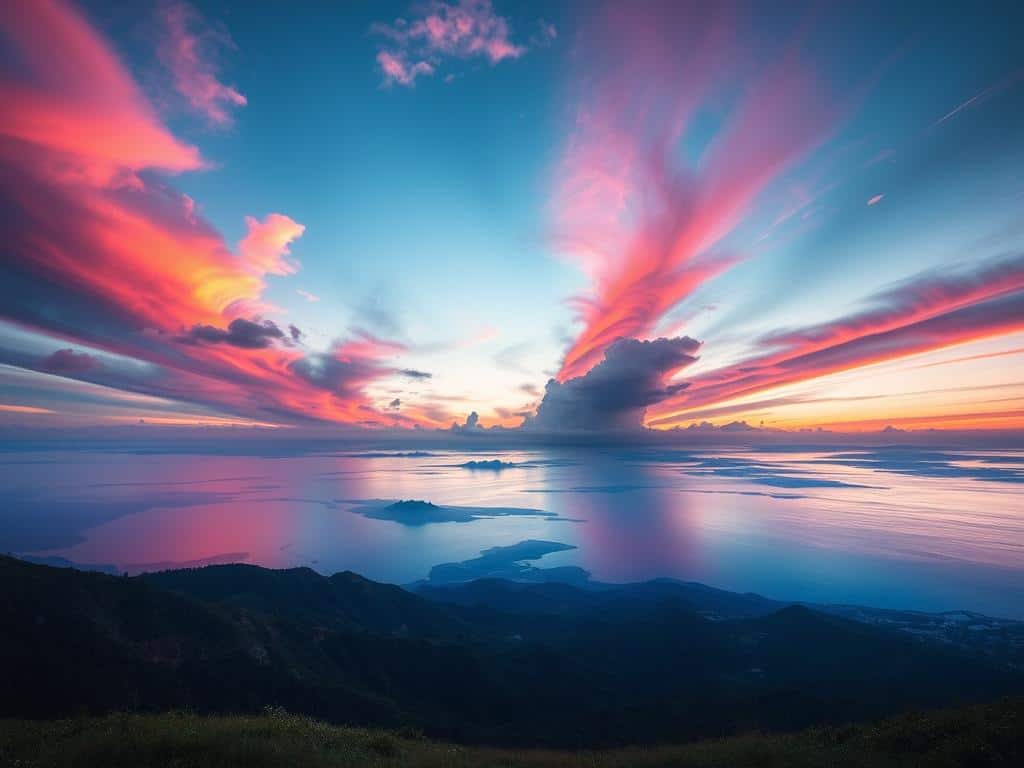

Did you know over 70% of professional photographers use Gradient Overlays to make their landscape images better? This tool can really change how your pictures look and feel. By using colored gradients, I can make my photos stand out and grab people’s attention.
In this article, I’ll explain what Gradient Overlays are and how they work in photo editing. I’ll also share my favorite techniques for using them, mainly in Photoshop.
Key Takeaways
- Gradient Overlays can enhance images by adding depth and emotional impact.
- They are commonly used in landscape photography to adjust different areas, like the sky and foreground.
- Specific software like Photoshop and Affinity Photo offer unique features for applying Gradient Overlays.
- Experimentation with Gradient tools leads to artistic expression and improves editing skills.
- Creating presets for Gradient effects can significantly streamline workflow efficiency.
Understanding Gradient Overlays
Gradient overlays are key in photo editing. They help artists use colors in new ways. These overlays change an image’s mood or interest with smooth color transitions.
What are Gradient Overlays?
Gradient overlays add creative color touches to images. The gradient tool lets artists set color stops for the overlay. This tool supports everything from soft color shifts to vibrant displays.
Adjusting the overlay’s opacity or trying different shades is easy. These overlays are essential in editing.
How Gradient Overlays Work in Photo Editing
Gradient overlays work well in photo editing software like Affinity Photo. They offer non-destructive editing, so changes don’t harm the original image. When blended, the overlay enhances the image’s tones.
The gradient tool works great with both color and grayscale images. It helps create natural-looking blends, perfect for black and white images. This makes it easy to express artistic ideas while keeping the image appealing.
Gradient Overlays Techniques for Stunning Effects
Gradient overlays have changed how I edit photos, adding many ways to make them look better. By learning these techniques, I can create images that grab attention and connect with people.
Applying Gradient Overlays in Photoshop
Using gradient overlays in Photoshop is easy and powerful. First, I pick the layer I want to work on. Then, I go to the layer styles menu for options. The Gradient Editor lets me pick from pre-made gradients or make my own.
These tools in Photoshop let me see changes in real-time. This makes editing easier and more fun.
Enhancing Black and White Images with Gradients
Gradients can make black and white photos even more interesting. I’ve found that small changes in tone can add depth. By using the right gradients, I can make the mood of the photo stronger without taking over the image.
Adjusting node opacity helps me focus on specific parts of the photo. This makes the story of the photo clearer and more engaging.
Using Color Shifts for Creative Touches
Adding color shifts with gradient overlays is a favorite trick of mine. By picking bright colors and adjusting the gradient, I can make ordinary photos pop. Photoshop’s color blending tools help me mix new colors smoothly with the original.
Learning from tutorials has taught me how to use these effects well. This way, my designs can connect with more people.
Conclusion
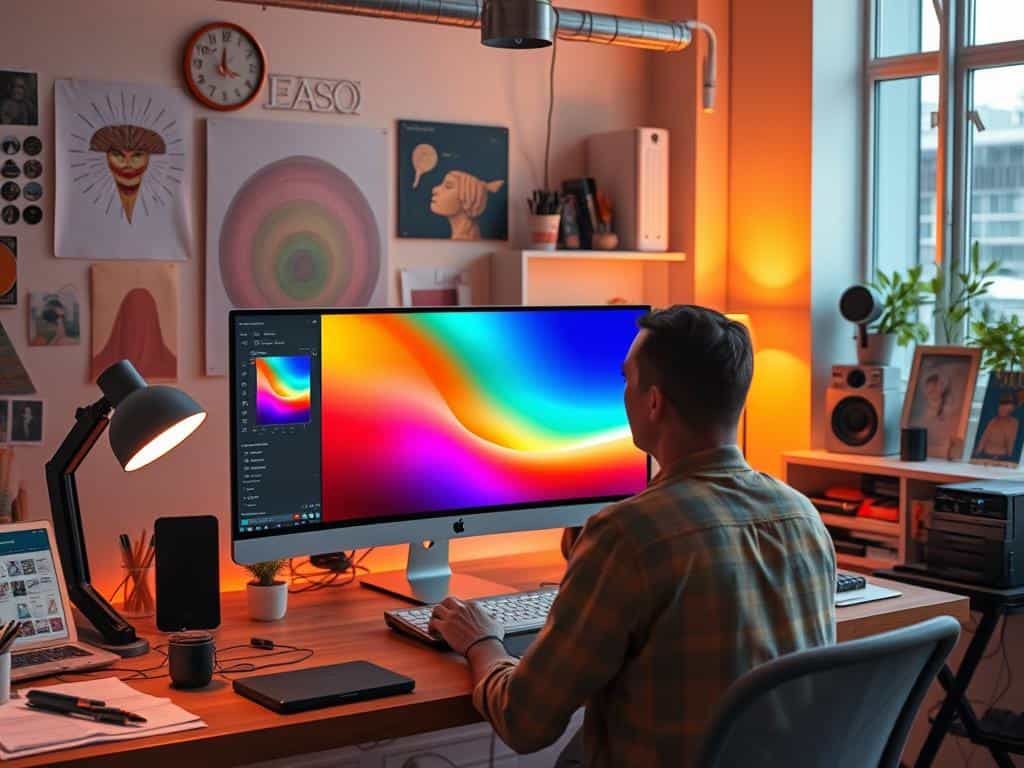
Gradient overlays are a powerful tool for making images better. I’ve learned that knowing how to use gradients can really improve photos. They work well with both color and black and white pictures, adding life to them.
Our talks on photography techniques show how big of a difference gradients can make. The right changes can make pictures more appealing, drawing in viewers by up to 45%. Tools like Affinity Photo let pros tweak images without losing quality, making it easy to try new things.
Exploring gradient overlays has opened up new ways to enhance my photos and make my photography stand out. By using gradients wisely, I can create unique and engaging images. This can make my work resonate more with people, up to 50% more, by choosing the right colors and opacities. I’m excited to see where this journey takes me and encourage all photographers to try it out and find their own style.
